Key takeaways
- Remote teams use five groups of tools: chat, video, calendar, documents and task boards.
- Learn one tool well in each group rather than many tools badly.
- Set your time zone in your calendar so meeting times are always clear.
- Use channels and threads to keep chat tidy, and write messages that can be answered without a call.
- Practise with a small project of your own before you use the tools for a client.
Remote teams do not need an office, but they do need a shared place to talk, meet, write and track work. That place is a small set of tools. This guide explains the five groups of tools you will meet, what each one is for, and how to practise them before you need them.
What tools do remote teams use?
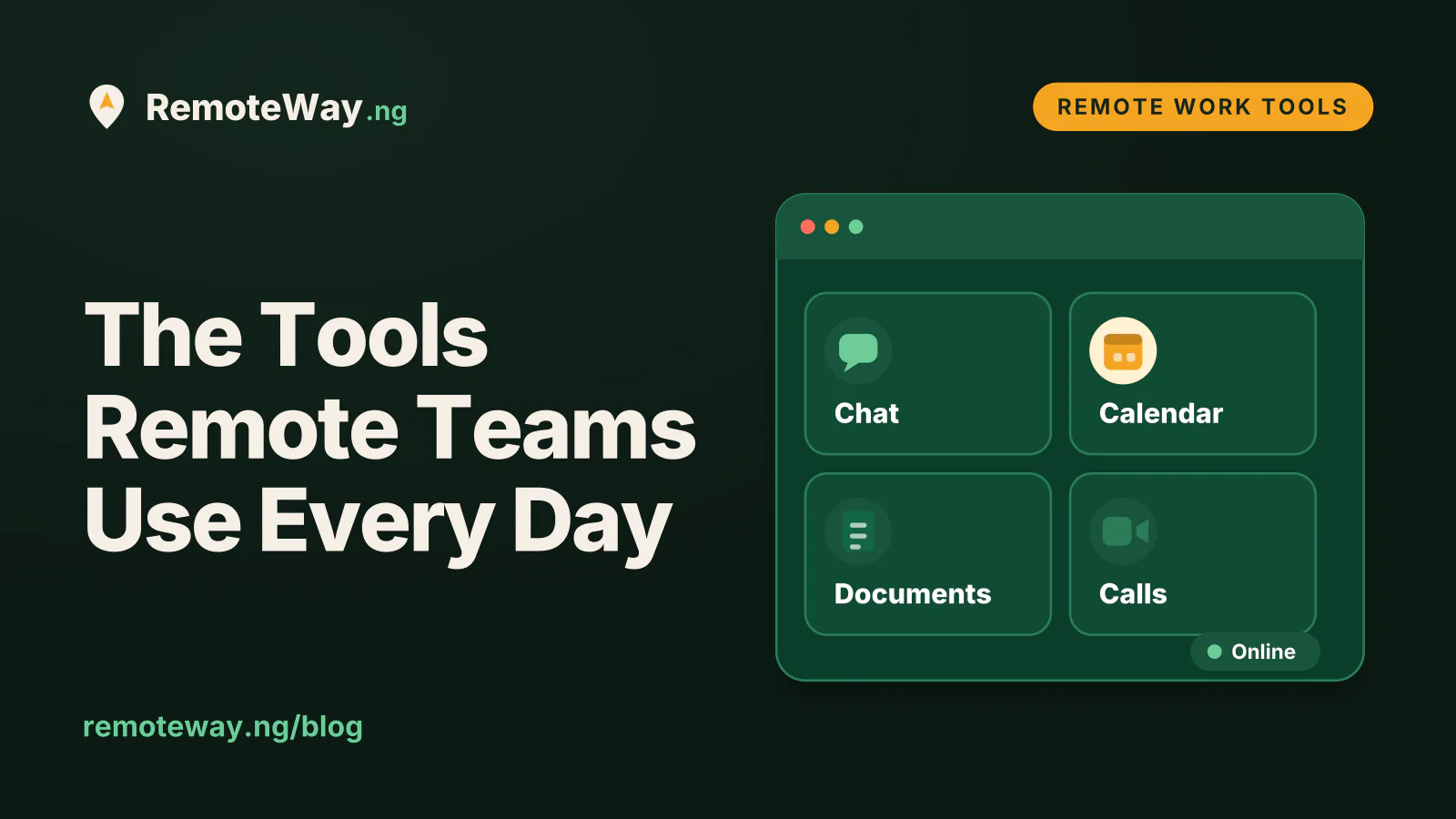
Almost every remote team uses these five groups:
| Group | What it does | Example |
|---|---|---|
| Chat | Quick messages and team conversations | Slack |
| Video calls | Meetings and one-to-one talks | Google Meet |
| Calendar | Shows who is free and when | Google Calendar |
| Shared documents | Writing and editing together | Google Docs |
| Task boards | Shows who is doing what by when | Trello, Notion or similar |
The exact app changes from team to team. The idea stays the same, so learn the idea first.
How does team chat work?
Slack is a common example. Its help centre explains the basics: channels are shared spaces for a topic, project or team; direct messages are private conversations with one person or a small group; and threads keep replies to one message together so a channel stays tidy.
A few habits make you easy to work with:
- Post in the right channel, not in a private message, so others can see the answer.
- Reply in a thread to keep the channel readable.
- Write messages that can be answered without a call: say what you need, by when, and give any link.
- Do not expect an instant answer. Many teams work at different hours.
How do video calls fit in?
Calls are for talking things through, not for everything. Google Meet, for example, lets you start a meeting from Meet itself, from Gmail, from Calendar or from Chat. For a scheduled call, you create a calendar event, add video conferencing, invite guests and save.
Before a call, test your sound and camera, find a quiet place, charge your device and join a few minutes early. If your data is limited, join with the camera off unless it is needed.
Why does the calendar matter so much?
Remote teams often sit in different time zones. Nigeria uses West Africa Time. A colleague in another country may be one or several hours ahead or behind you.
Google Calendar shows each event in your own local time, and the people you invite see it in theirs. You can set a main time zone and add a second one so both appear beside your grid, and each event can have its own time zone. Use this every time you book a call with someone abroad, and write both times in the invite.
How do shared documents and task boards help?
A shared document means everyone edits one copy, so there is no "final_v3_new" file. Use comments to ask questions, and use headings so people can find things.
A task board lists work in columns such as To do, Doing and Done. Each card has an owner and a date. It lets a manager see progress without asking you for updates all day. Keep your cards small and update them when you finish a step.
What else should you set up?
- A password manager to store strong, different passwords safely.
- Two-step sign-in on email and chat.
- A tidy folder system with clear file names and dates.
- Offline copies of key documents for when the network drops.
How do you learn these tools?
Do not try to learn everything. Pick one tool in each group, then run a small practice project: plan a week, write a one-page document, share it, hold a short practice call with a friend, and track the tasks on a board. Repeat the project until it feels easy.
This is how the Virtual Assistant program at RemoteWay teaches tools: through real tasks with feedback, not by watching a feature tour. See virtual assistant tools to learn first for a starter list, and the Virtual Assistant program for the full course. If you are new to the whole idea, read what remote work is first.
Frequently asked questions
What tools do I need to work remotely?
Most remote work needs a chat tool such as Slack, a video tool such as Google Meet, a calendar, a shared document tool such as Google Docs, and a task board for tracking work. Add a password manager for safety. Your employer or client will tell you which exact apps they use, so be ready to learn quickly.
Do I have to pay for remote work tools?
Not at the start. Many tools have free plans that are enough for learning and for small projects, and employers usually provide their own accounts. Always check the plan on the official website, because features and limits change. Avoid anyone who asks you to pay for access to tools before they hire you.
How do I get good at remote tools quickly?
Use them every day on a small project of your own. Plan a week in a calendar, write a document, share it, and run a practice video call with a friend. Notice what slows you down and fix it. Repeating real tasks teaches far more than watching a tool being explained once.
Sources
Ready to learn this properly?
Creating an account costs nothing. Every program is self-paced, with comprehensive training videos created by top experts in their fields. We teach skills. We don't promise jobs or income.
Keep reading
What Is Remote Work? A Plain Guide for Nigerians
What remote work means, how it differs from hybrid and freelance work, and what you need to start in Nigeria: a plain guide with the words you will meet.
Study and Work Online with Low Data and Unstable Power
Practical ways to study and work online when data is limited and power is unreliable: data saver settings, offline files, battery habits and a backup plan.
How to Spot a Fake Remote Job Offer
Learn the warning signs of a fake remote job offer, the checks to run before you reply, and what to do if you have already paid or shared your details.