Key takeaways
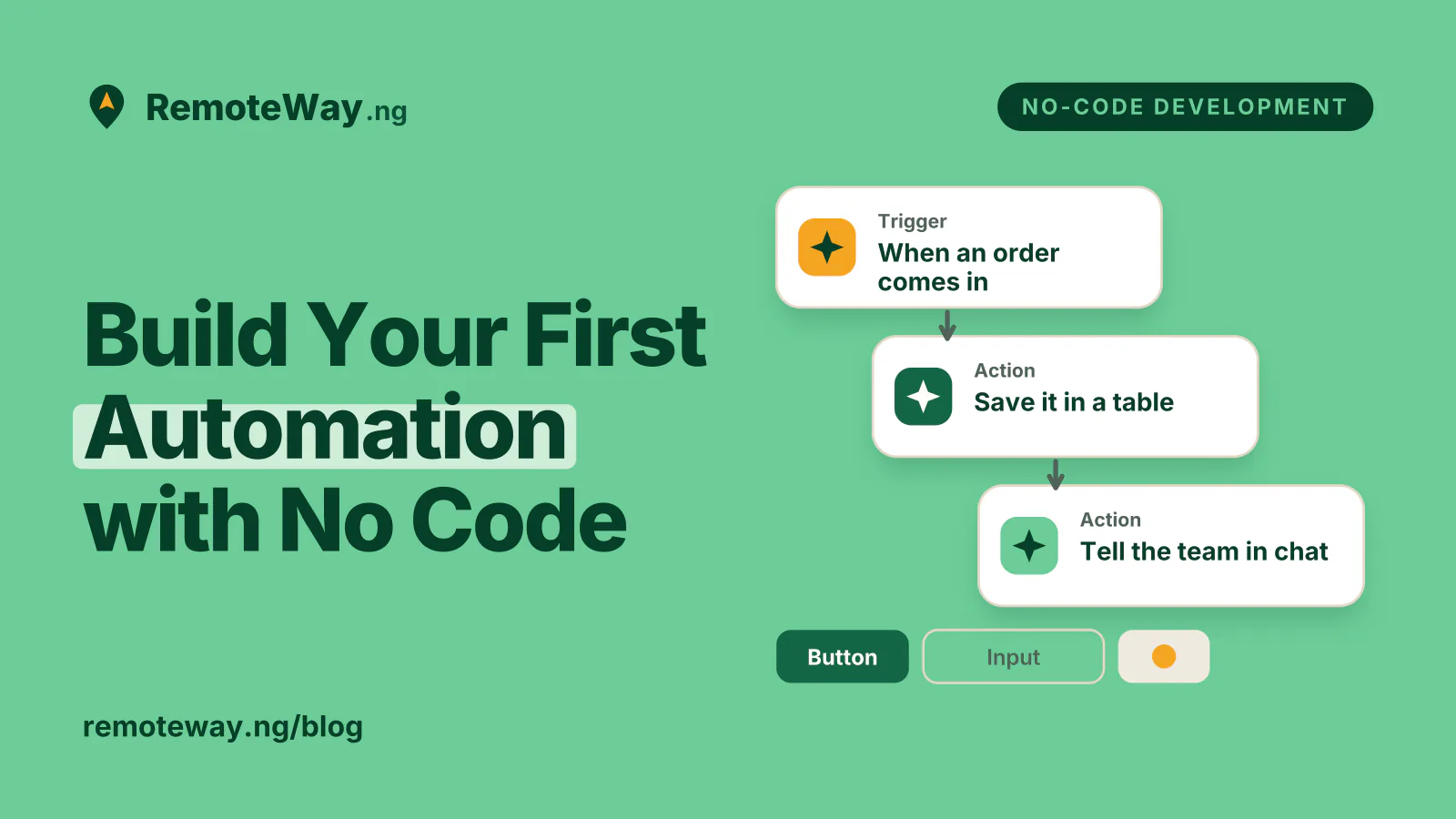
- A no-code automation has a trigger and one or more actions.
- Start with a task you repeat often and a simple two-step workflow.
- Test with made-up data before you connect real records.
- Document what the automation does, its limits and what to do when it fails.
- Automation saves time only when the process is predictable.
Many office tasks repeat: copying details from a form into a sheet, sending the same reminder every week, saving attachments into a folder. A no-code automation does them for you. You do not need to program. You need to describe the task clearly and test it carefully. This guide shows how.
What is a no-code automation?
No-code automation uses visual tools, such as drag-and-drop builders, ready-made connections between apps and simple conditions, to make tasks run on their own. The code still runs behind the scenes, but the platform hides it. The idea can be summed up as: "when this happens, do that."
What are triggers and actions?
- Trigger: the event that starts the automation. For example, a new form submission or a new email. A trigger is always the first step of a workflow.
- Action: a task the system performs after the trigger. For example, add a row to a spreadsheet or send a message to a chat channel.
A basic workflow has one trigger and one or more actions.
| Trigger | Action |
|---|---|
| A new answer arrives in a form | Add a row to a spreadsheet |
| A starred email arrives | Create a task in a to-do list |
| A new row is added to a sheet | Send a message to a team chat |
Which task should you automate first?
Not every task is a good candidate. Good first choices are:
- Done often, so the time saved adds up.
- Predictable, the same steps every time.
- Low risk, so a mistake is easy to fix.
- Currently manual and repetitive, such as copying data between apps.
Poor first choices include tasks that need judgement, such as deciding whether to refund a customer.
How do you build your first one?
Step 1: Write the task in one sentence
"When a new answer arrives in my practice form, add it to my practice spreadsheet."
Step 2: Draw it
Sketch two boxes: trigger, then action. Write what information passes between them, such as name and email.
Step 3: Start with two steps
Keep your first workflow small. A two-step workflow is easy to understand and to fix. You can add more steps later.
Step 4: Test with made-up data
Use fictional test data, such as the name "Test Person" and a made-up email address, so you can check the result without touching real records. Submit a test form, then check that the right row appears in the right place.
Step 5: Check every step
Open each step and confirm which account it uses and which fields it fills. Templates are only starting points: you still need to connect your accounts and confirm each setting.
Step 6: Switch it on carefully
Turn it on for a short trial. Watch the first few runs. Keep a note of the date you turned it on.
What can go wrong?
- A step fails because an account was disconnected or a field is empty.
- The wrong data moves because a field was matched to the wrong column.
- The tool cannot do something unusual. No-code tools can be less flexible when you need very custom behaviour.
- Real data is exposed because you tested with real records.
Plan for failure: decide who is told when it fails, and how to run the task by hand.
How do you document an automation?
Write one page that says what the automation does, what starts it, what it changes, which accounts it uses, its limits, and what to do if it stops. Someone else should be able to run or fix it with only that page. This is a valuable habit for a client or a team, and a strong sample for your CV.
Where does this fit into remote work?
Automation is common for assistants, operations staff and small teams. See virtual assistant tools to learn first and tools remote teams use for the surrounding skills.
Where can you learn it properly?
RemoteWay's No-Code Development program is self-paced, with comprehensive training videos created by top experts in their fields, and teaches you to build, test and document real workflows. We teach skills and do not promise jobs or income.
Frequently asked questions
What is no-code automation?
No-code automation uses visual tools, such as drag and drop builders and ready-made app connections, to make tasks run on their own without writing programs. The code still exists behind the scenes, but the platform hides it. You choose a trigger and the actions that follow, and the tool does the work.
What is a trigger and what is an action?
A trigger is the event that starts an automation, such as a new form entry or a new email. An action is the task done after the trigger, such as adding a row to a spreadsheet or sending a message. A workflow always starts with a trigger, then runs one or more actions in order.
What should I automate first?
Choose something you do often, that follows the same steps every time and has a low risk if it goes wrong. Examples are copying form answers into a spreadsheet or sending yourself a reminder. Start with two steps, test with made-up data, and add more steps only after the first version works.
Sources
Ready to learn this properly?
Creating an account costs nothing. Every program is self-paced, with comprehensive training videos created by top experts in their fields. We teach skills. We don't promise jobs or income.
Keep reading
What Is Data Analytics? A Beginner Explanation
What data analytics is, the six steps analysts follow, the tools and skills involved, and how a beginner can practise with a small table and a clear question.
Virtual Assistant Tools to Learn First
The starter toolkit for a new virtual assistant: email labels, calendars and time zones, chat, shared documents, a password manager and a tidy folder system.
The Tools Remote Teams Use Every Day
A beginner guide to the tools remote teams use daily: chat, video calls, calendars, shared documents and task boards, and how to learn them with practice.